
Jira Original Estimate Change History Report
Pull aggregated calendar view report for Jira Original Estimate changes, and provide context beyond what Jira history tab and lists of changes allow
In project management, keeping a reliable project baseline is important for accurate planning. While a significant number of Scrum teams prefer Story Points, many agile and traditional teams choose time estimates (hours or days) because they align more directly with client billing, capacity limits, or internal resource tracking. In Jira, the Original Estimate field serves as this primary reference point against which a team’s planning accuracy and progress are measured.
However, a common challenge many teams face is baseline drift. When original estimates are modified quietly after a sprint or project has started, it can alter your reporting data, mask scope changes, and skew historical velocity.
With the User Activity Timeline for Jira app, you can easily see when and by whom estimates were changed. By leveraging the app’s capability to track custom events, you can build a dedicated Original Estimate Change History Report to monitor baseline stability across users and teams, for one or multiple projects, looking back up to one year.
Why Tracking Original Estimate Changes is Helpful
Because Jira allows users with edit permissions to update fields at any time, original estimates often get modified during active development. Keeping an eye on these changes is beneficial for several reasons:
- Identifying Mid-Sprint Scope Adjustments: If an estimate is increased a few days into a sprint because a task is more complex than expected, the total scope expands. Tracking this ensures that these changes are visible and can be discussed openly.
- Maintaining Objective Data for Project Reviews: Sometimes team members adjust the Original Estimate after the work is completed so that it matches the actual time spent. While this keeps progress reports and dashboards looking tidy, it removes the opportunity to learn from initial planning mismatches, making it harder to improve future estimation accuracy.
- Providing Clear Documentation for Client Billing: For agencies and professional services teams, changes in project estimates affect timelines and budgets. A clear historical report provides a reliable reference to share with stakeholders when discussing project adjustments.
- Supporting Team Growth: By seeing where and when estimate changes occur, Scrum Masters and project leads can identify coaching opportunities to help team members scope their tasks more comfortably during planning sessions.
Using Story Points instead?
If your team uses Story Points rather than time tracking, you can apply this same reporting method. Instead of tracking the Original Estimate field, configure your custom event to capture updates for the Story Points field- when the field value changes from “was not empty”, allowing you to see exactly how your team’s sprint scope shifts.
Which Teams Benefit the Most?
- Scrum & Kanban Teams: To protect sprint commitments and ensure that velocity metrics reflect true planning accuracy rather than mid-cycle adjustments.
- Project Managers & Delivery Leads: To maintain a clear project baseline, manage stakeholder expectations, and identify delivery risks early.
- Agencies & Professional Services: To maintain transparency with clients regarding why a piece of work requires more effort than originally quoted.
How to Setup a Report for Jira Original Estimate Changes (Step-by-Step)
A key advantage of User Activity Timeline for Jira is its flexibility. You can isolate and analyze specific field changes by creating custom events, while the aggregated calendar view makes the data easier to understand at a glance and provides more context than a simple list of changes.
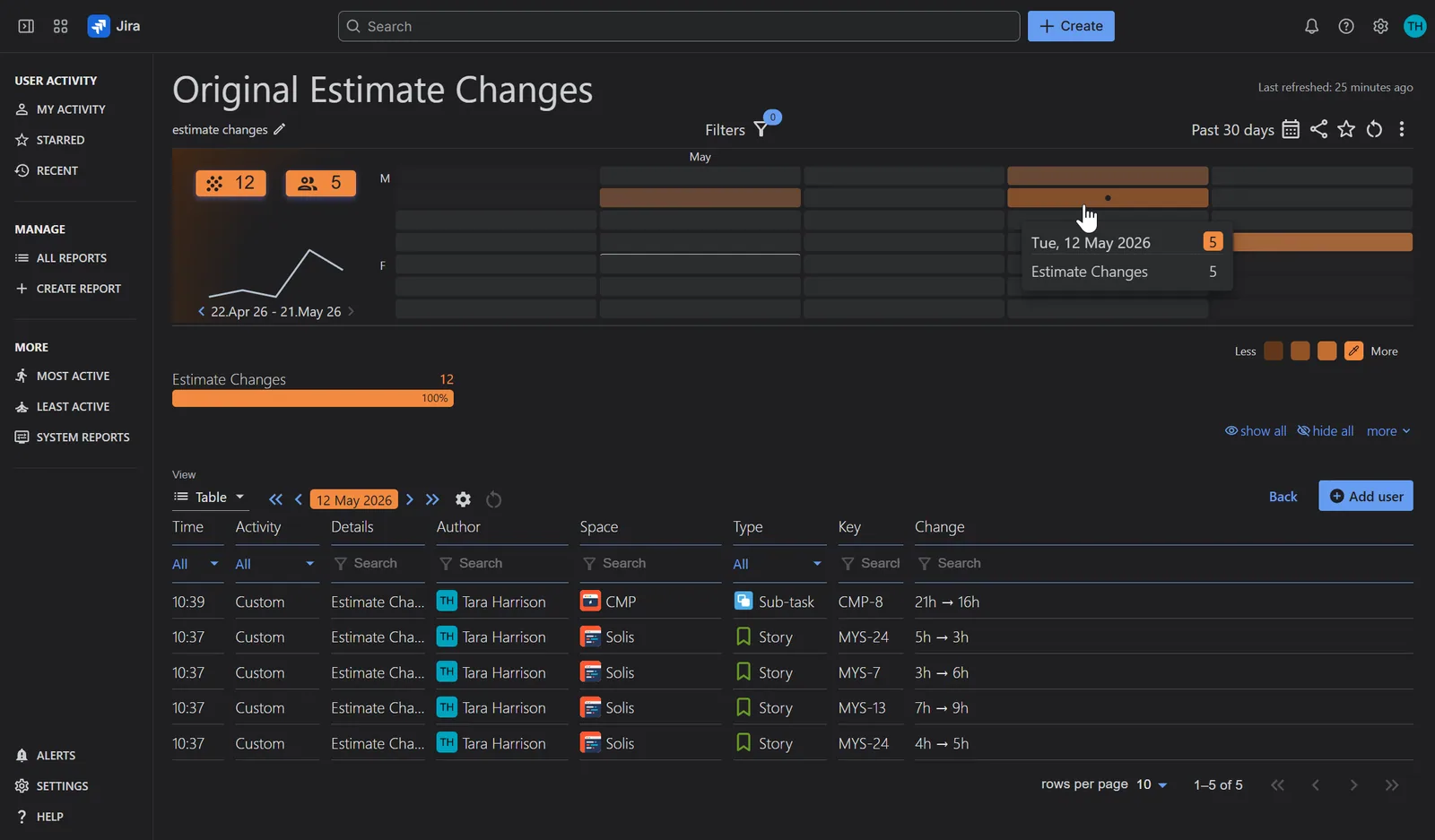
Here is how you can set up a report focused on Original Estimate changes:
Step 1: Access the app through the Jira sidebar and click “Create Report”.
Step 2: Enter a descriptive report name. Add the users whose activity you want to track, and select the default view for the report.
Step 3: Open the Reported Activities modal and disable all default activities.
Step 4: Add a custom activity:
- Provide a descriptive name
- Select the “Original Estimate” field
- Apply the condition to ‘Previous value’: was not empty
Step 5: Save the configuration. If needed, apply additional filters or adjust the reporting date range to align with your reporting needs.
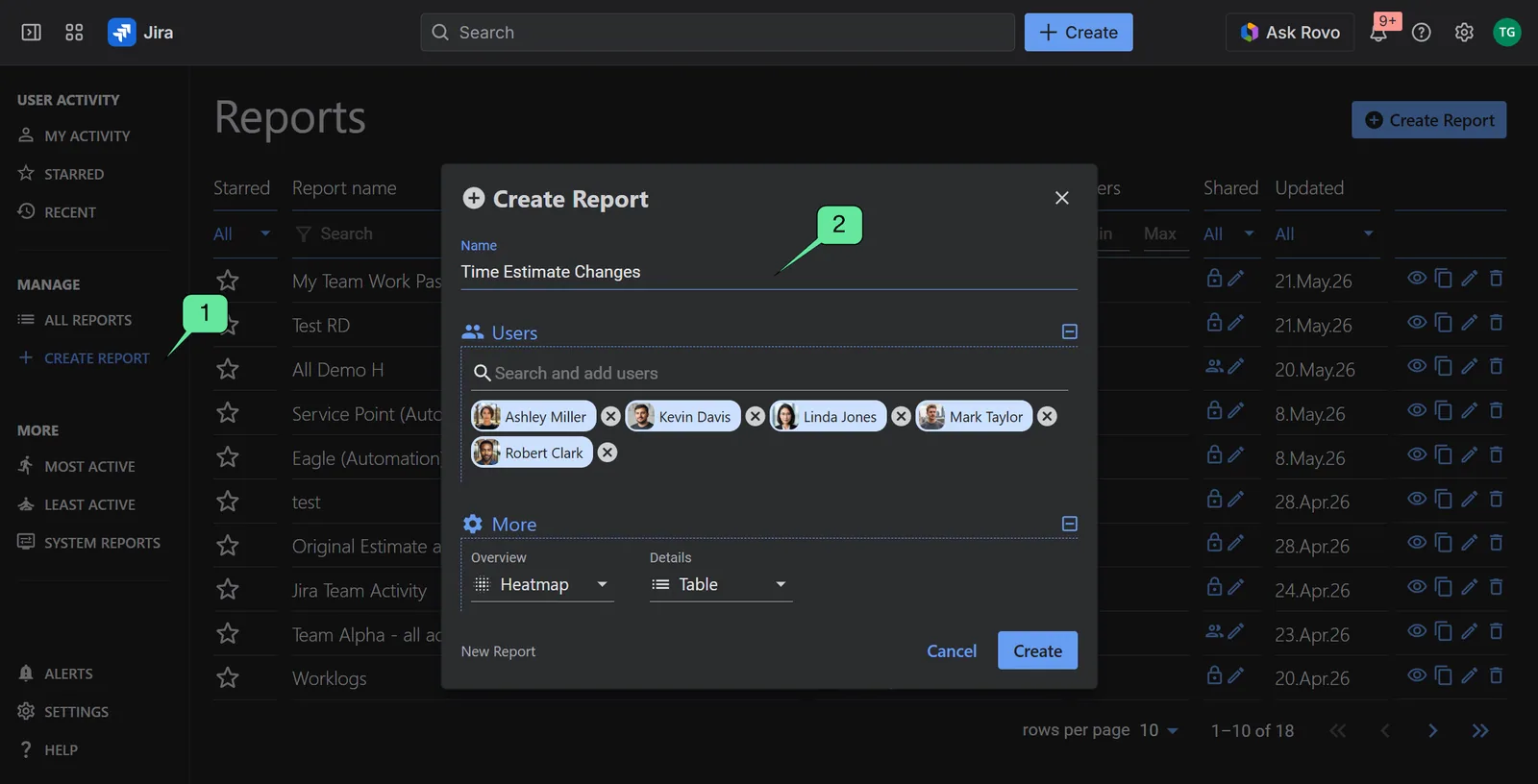
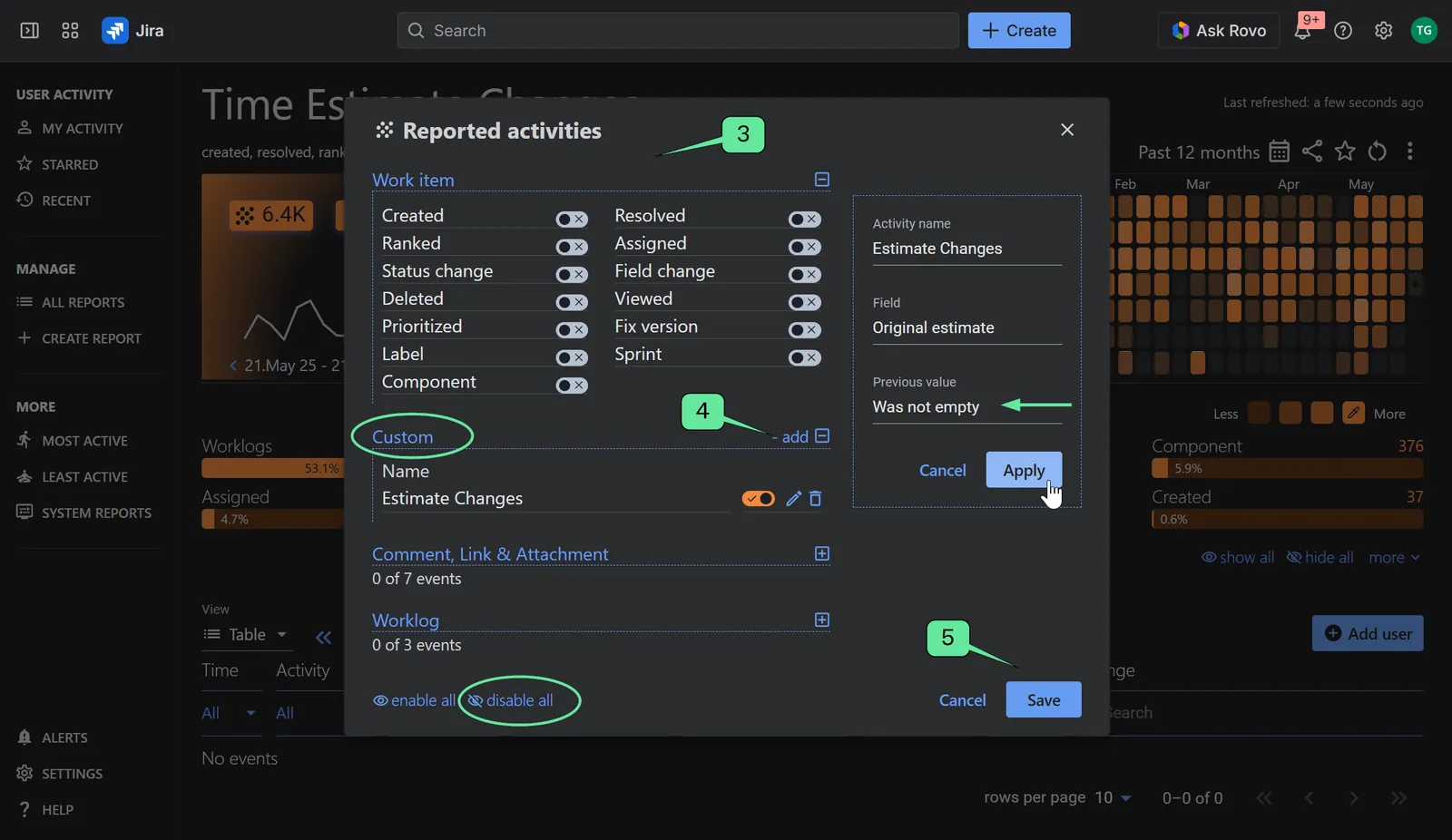
Review the report based on your view settings
Once configured, the report organizes individual Jira history entries into a clear visual overview:
- Interactive Heatmap: Check when estimate changes occur – whether they happen right after planning or at the very end of a cycle. Based on the cell color intensity, assess whether adjustments are increasing over time, which might indicate a need for clearer initial requirements.
- Data Table Breakdown: Click on any cell to view the exact details, including the old value, the new value, the timestamp, and the user who made the change.
Conclusion
A successful project relies on a dependable baseline. By monitoring changes to your original estimates, you gain the visibility needed to protect project scopes, calibrate planning accuracy, and keep your data reliable.
Best of all, this report is easy to manage on the go. You don’t need to build a new view from scratch every time; simply pull up an existing report that already has your team, projects, and date filters saved, disable all activities and apply your custom estimate change filter. Within a few clicks, you have a clean, focused view of your team’s estimation history.
This is just one of many Jira activity reports you can configure with User Activity Timeline & Work History. Install the app from the Atlassian Marketplace to start monitoring field change history across your Jira instance.
Related articles
More report examples for Misc KPI Reports
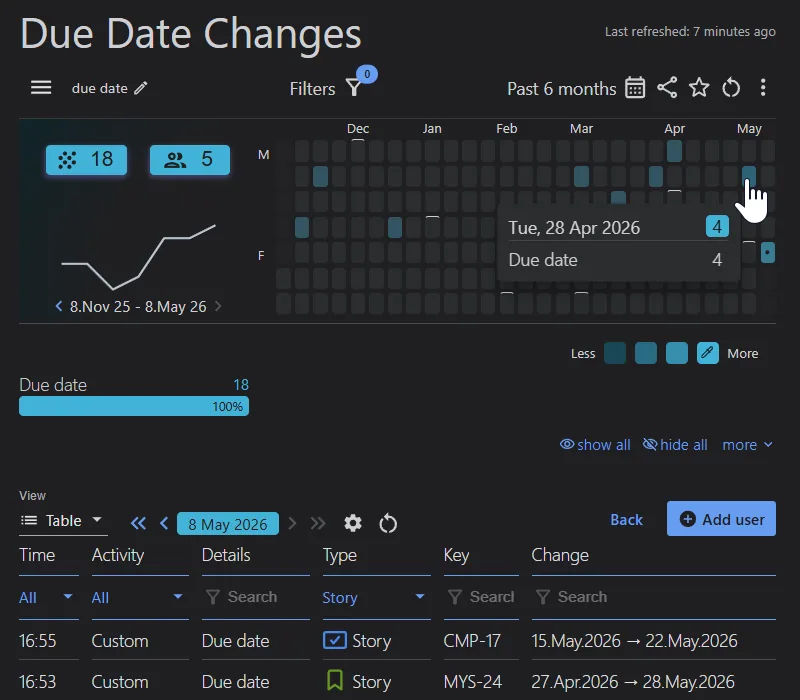 Misc KPI ReportsJira Due Date Change History
 Misc KPI ReportsPoP Improvement KPI
 Misc KPI ReportsPeriod over Period Chart – % Change Comparison
 Misc KPI ReportsBudget vs Actual Cost Report in Jira
Meaningful Reports for Jira, Made Easy
DevAcrobats develops reporting apps for Jira that extend its capabilities, enabling teams to streamline workflows and enhance performance.