
 How to Track Open Issues Over Time in Jira (with Historical Trends)
Track Request Volumes per Organization: Ensuring Accurate Jira Reporting
Explore efficient Jira reporting, track accurately request volumes per organization with Jira Automation and a custom field.
In a previous article (Jira Service Management’s Organizations Field: Exposed Behavior), we explored the default behavior of the Organizations field in Jira Service Management. We uncovered how agents inadvertently share requests with entire organizations when manually adding them to the field, and we discussed the implications of this behavior for the accuracy of Jira reporting by organization.
Creating reports to track request volumes per organization in Jira is a common need. These reports can be generated using native Jira gadgets or third-party charting and reporting tools. However, the behavior of the Organizations field might lead to a significant number of actual requests being omitted from reports, which can result in inaccuracies and misrepresentation of data. Moreover, if your agents manually fill in organizations to the field in requests to improve Jira reports, all those requests become shared and visible to the entire organizations they’re added to.
To address this reporting gap, a practical solution emerges: the creation of a custom field tailored for accurate organizational reporting. Here’s how it works:
Step 1: Create a New Custom Field
- Select ⚙️ > Issues.
- Under FIELDS, select Custom fields.
- Click Create custom field.
- Select the Labels type of field and click Next. This field type allows users to tag issues with reusable text snippets.
- Add the details for your field. In our case, we have named this custom field Organization name.
- When you have entered the field details, select Create.
- Add the new custom field to one or multiple screens by ticking the corresponding box and click Update.
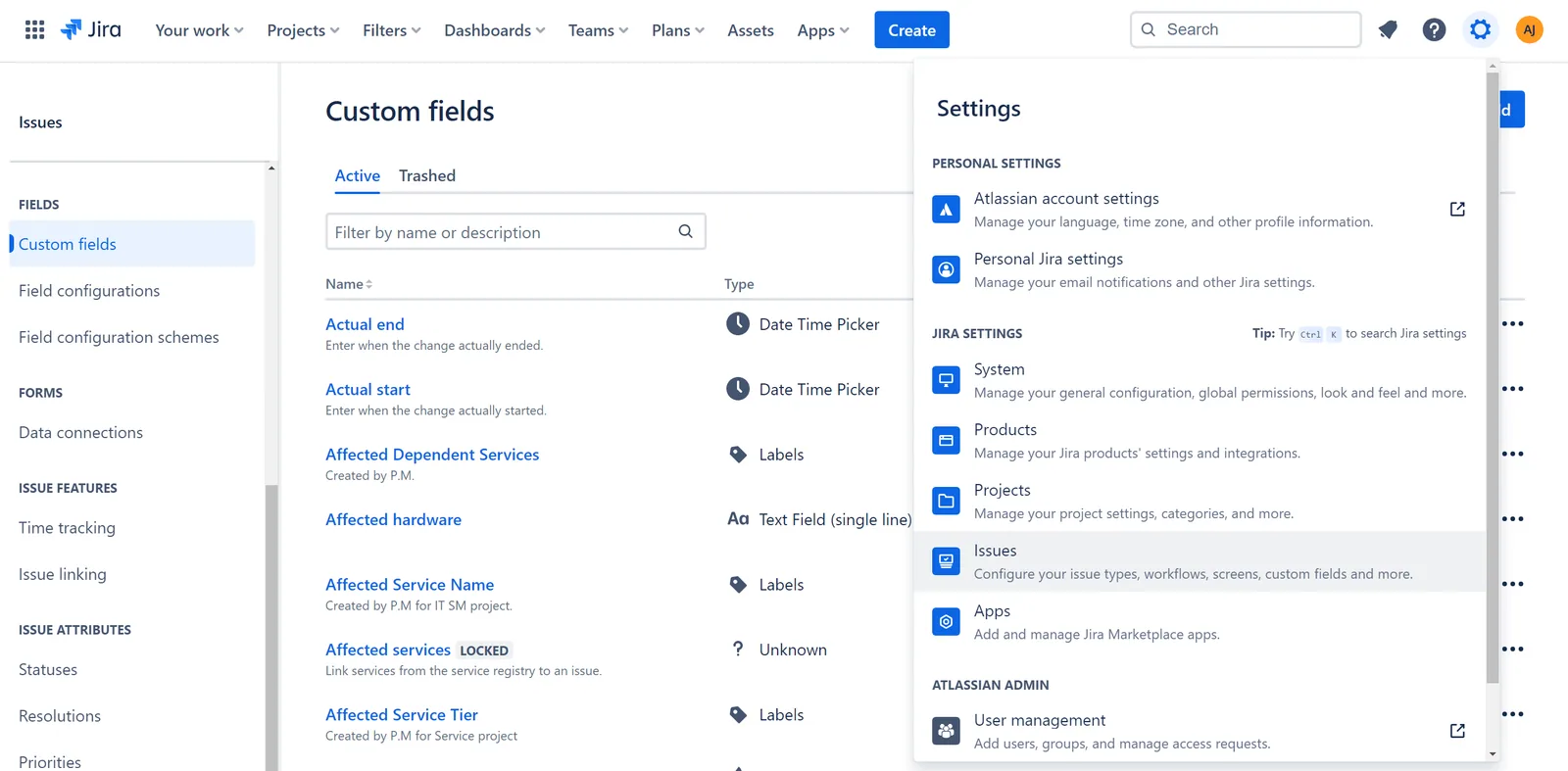
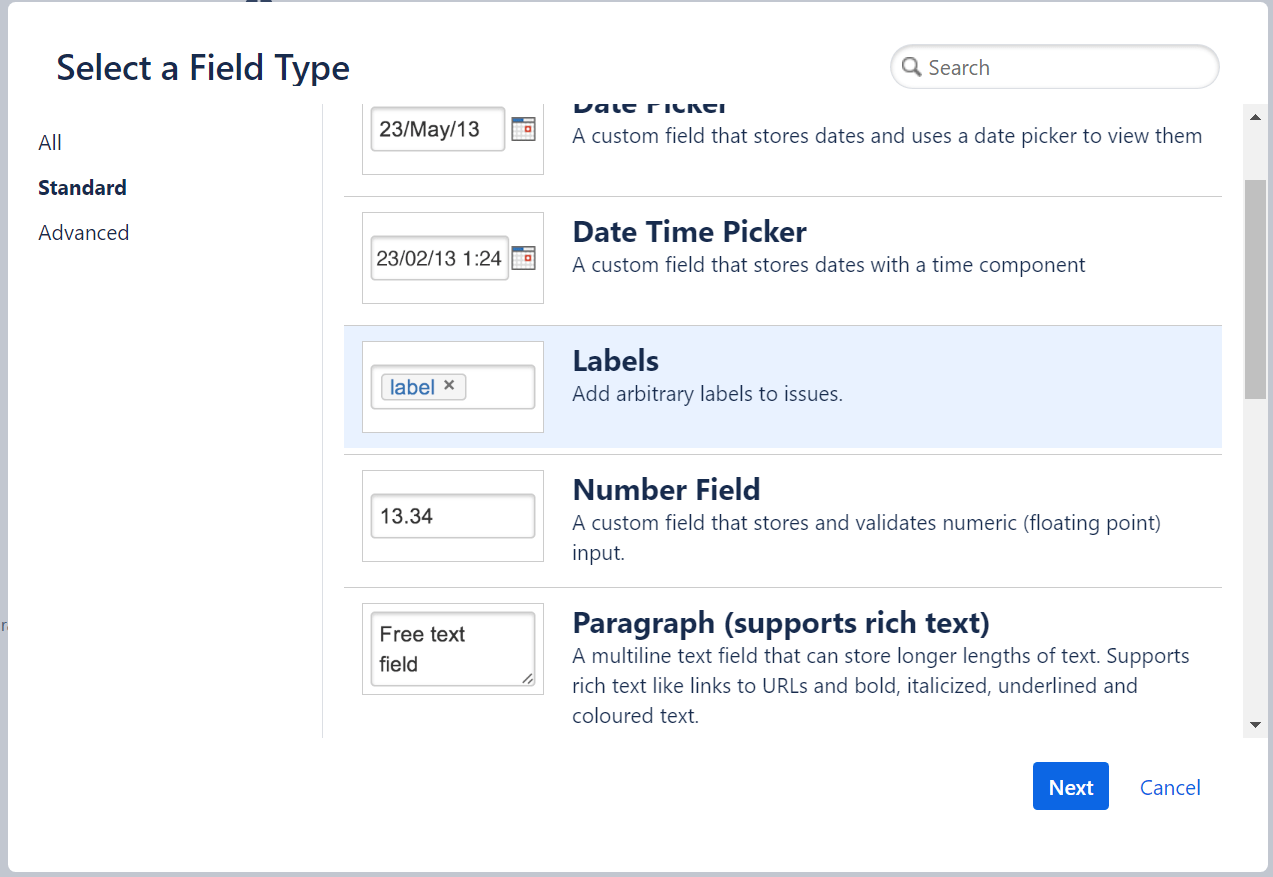
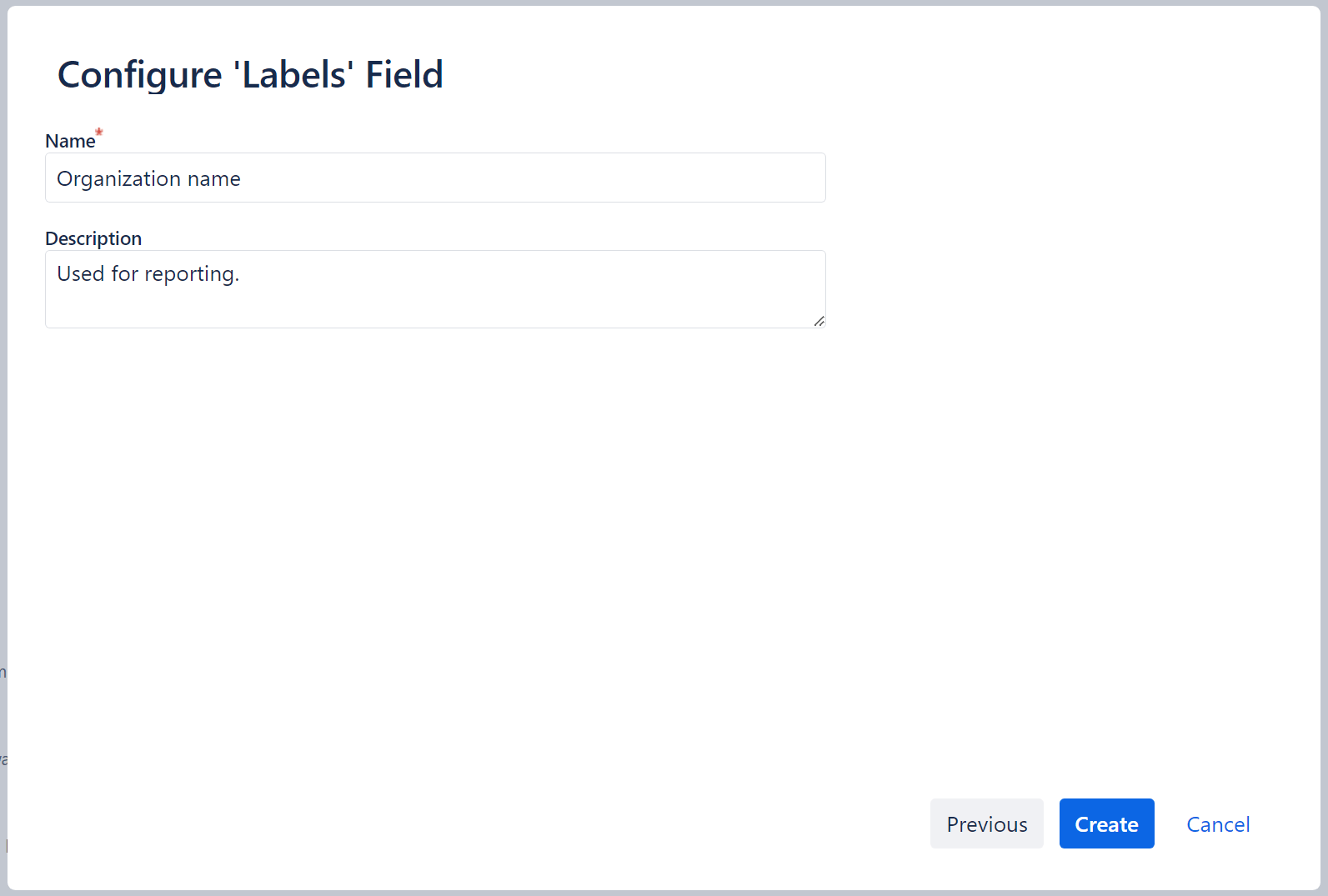
*Please note that in company-managed projects, you must be a Jira Administrator. In team-managed projects, Project Admins can set up custom fields.
Step 2: Use Jira Automation
Utilizing your newly created field, you can employ a Jira Automation rule to capture customer data regarding their organization affiliation and assign it to the custom label field Organization name. This will enable you to accurately report on Organizations, even if the default Organizations field is empty.
- For a global rule: Select ⚙️ > System > Global Automation
- For a project-level rule within your JSM project: Go to Project settings > Automation
Create a new rule with the trigger “Issue created”. If you need to restrict the types of requests accounted for or add any other conditions, you can do so by adding a “If : Add a condition” block with your filters and conditions.
We propose two paths for the solution:
Path 1: Simple Cross-Reference Check
This method involves simple Jira automation checks to determine if the customer belongs to a known Organization from your list. While straightforward, it requires knowing all your organizations and creating rules for each, which is feasible for businesses with known number of organizations.
This simple method functions for the cases where all organizations are included in the rule. For instance, if there are 5 organizations in your list, but the rule is configured to check only 3 of them, then you can anticipate that the custom field you created will be empty for the remaining 2 organizations.
| Trigger | Conditions block | Action |
|---|---|---|
| Issue Created | If matches -> Reporter is in a “Given_Organization” | Edit issue fields-> “Your_custom_field” and manually type the name of the Organization |
| Else-if -> make a check for the next Organization/s until you have covered all of them | Same as above |
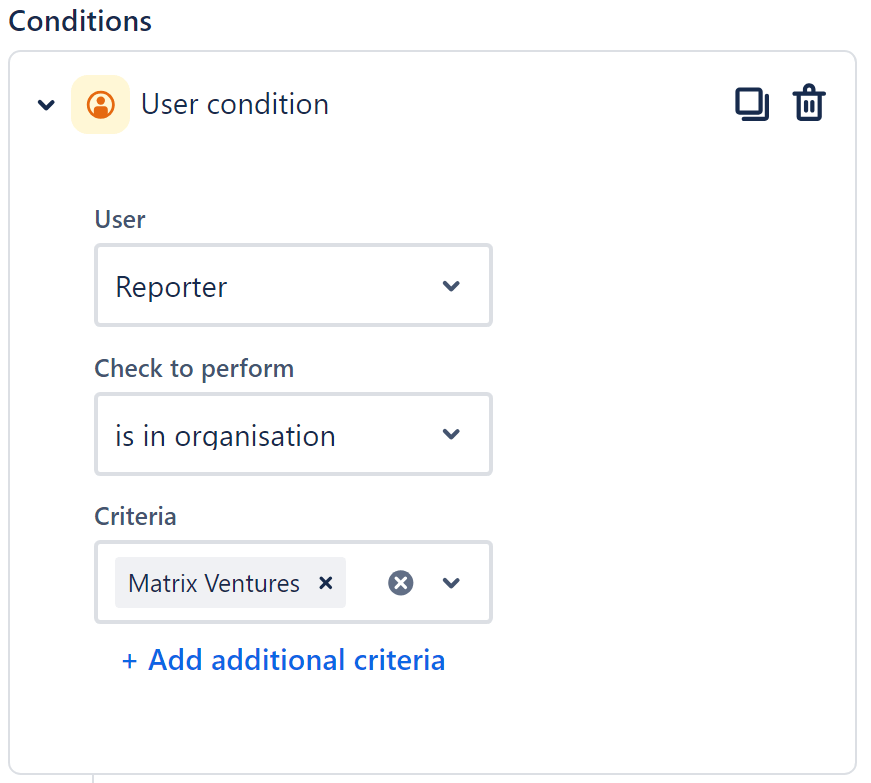
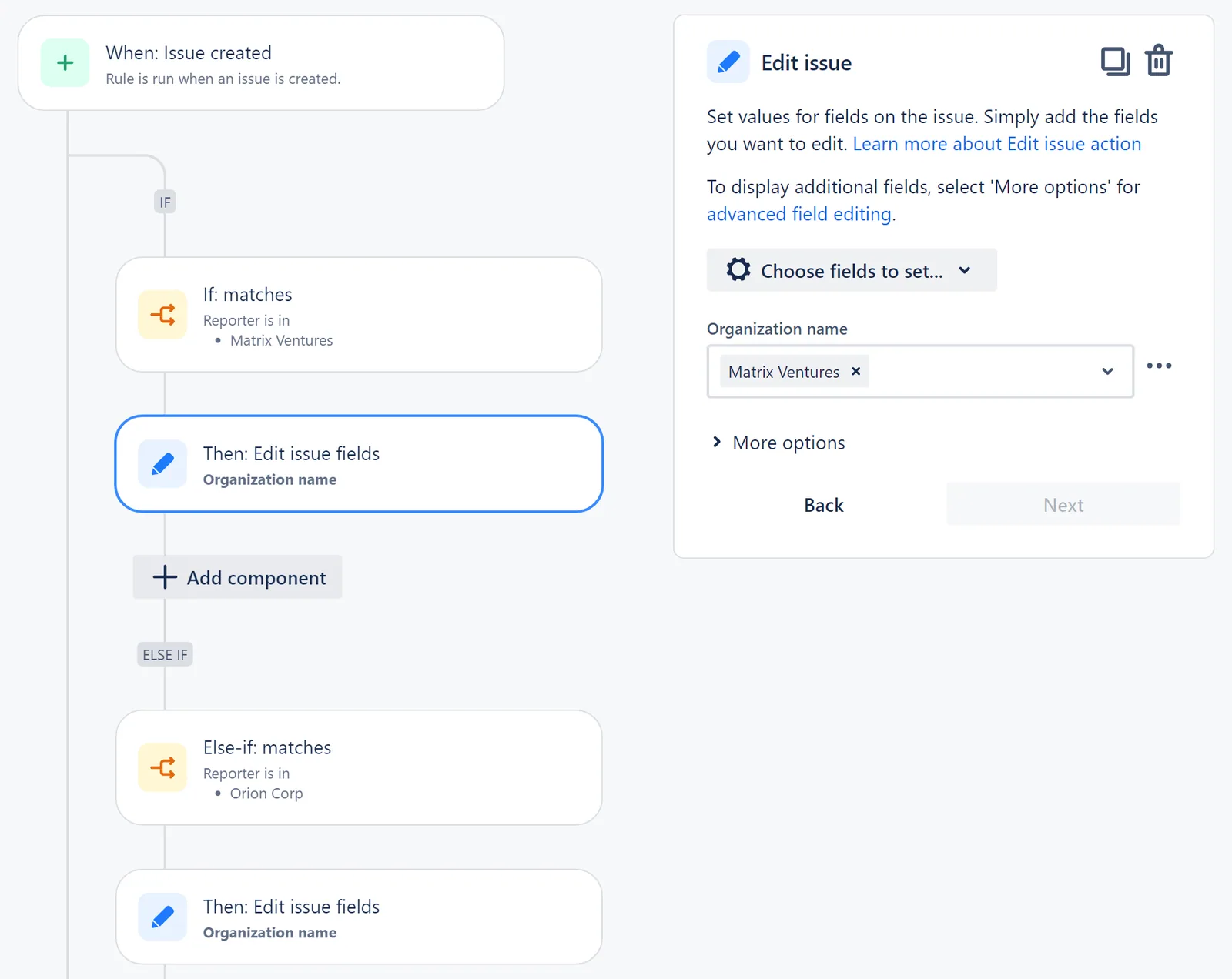
If the reporter is affiliated with multiple organizations, more complex rules may be required to address this situation effectively.
Path 2: REST API Integration
Utilize REST API calls to automatically populate the custom field Organization name with relevant organizational data upon issue creation. This scalable approach minimizes manual intervention and enhances efficiency.
- Create an API Token: Follow the instructions in the Jira documentation for generating a token.
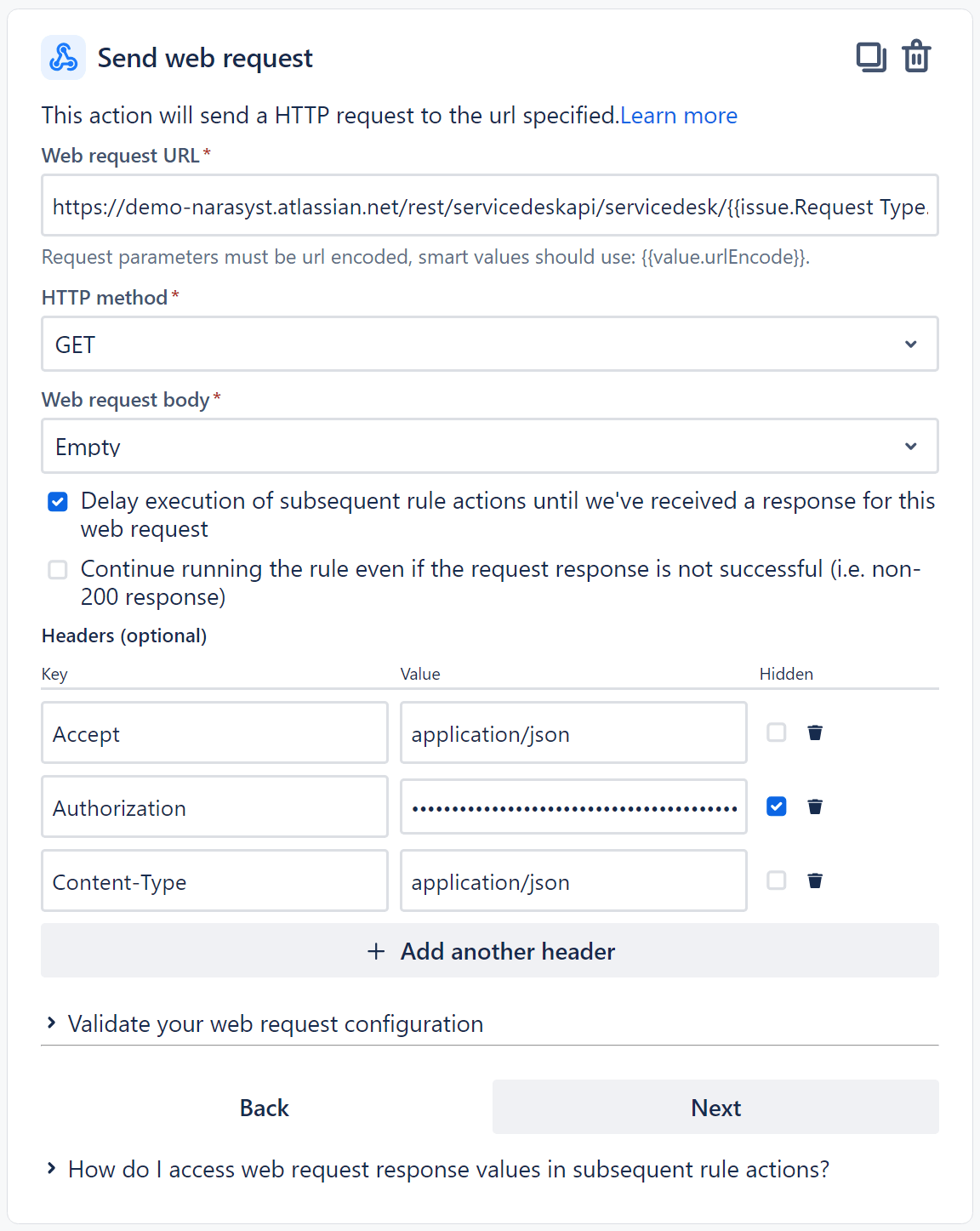
- Create your Automation rule: Set the trigger as "Issue created". Add the action "Send web request" with the Web URL as follows: _https://YOUR_INSTANCE.atlassian.net/rest/servicedeskapi/servicedesk//organization?accountId=_. For more details on this API, refer to the Jira Service Management Cloud REST API documentation.
- Set the HTTP method as "GET" and the Web request body "Empty". Enable "Delay execution of subsequent rule actions until we've received a response for this web request".
- Configure the AuthorizationHeader: Use your encoded basic token created earlier for Authorization.
- Create a Smart value check with the first value as "" and condition "Does not equal". Leave the second value empty.
- Add the action 'Edit Issue': Do not select any fields. Instead, set the custom field using the "Additional fields" option with the provided template.
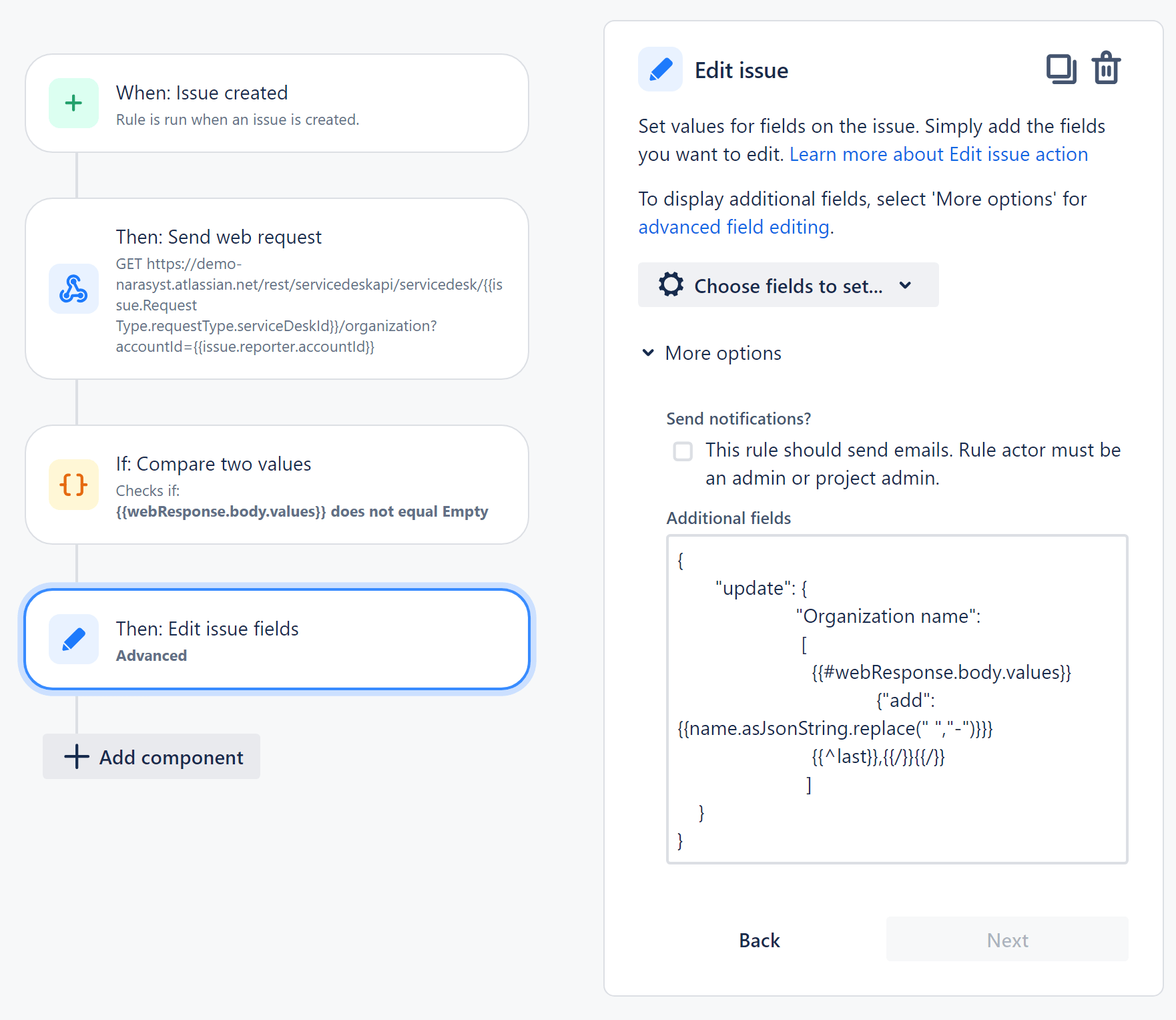
This code is designed to update the label field with data retrieved from the Organizations through the Customer API call. If using the custom field name doesn’t work, resort to using the custom field’s ID. To find it, go to the settings for your custom field at Settings -> Custom Fields -> Search, and open the desired custom field. Alternatively, click the three dots on the right and select “Edit details”. Assemble the word “customfield_” with the ID from the URL.
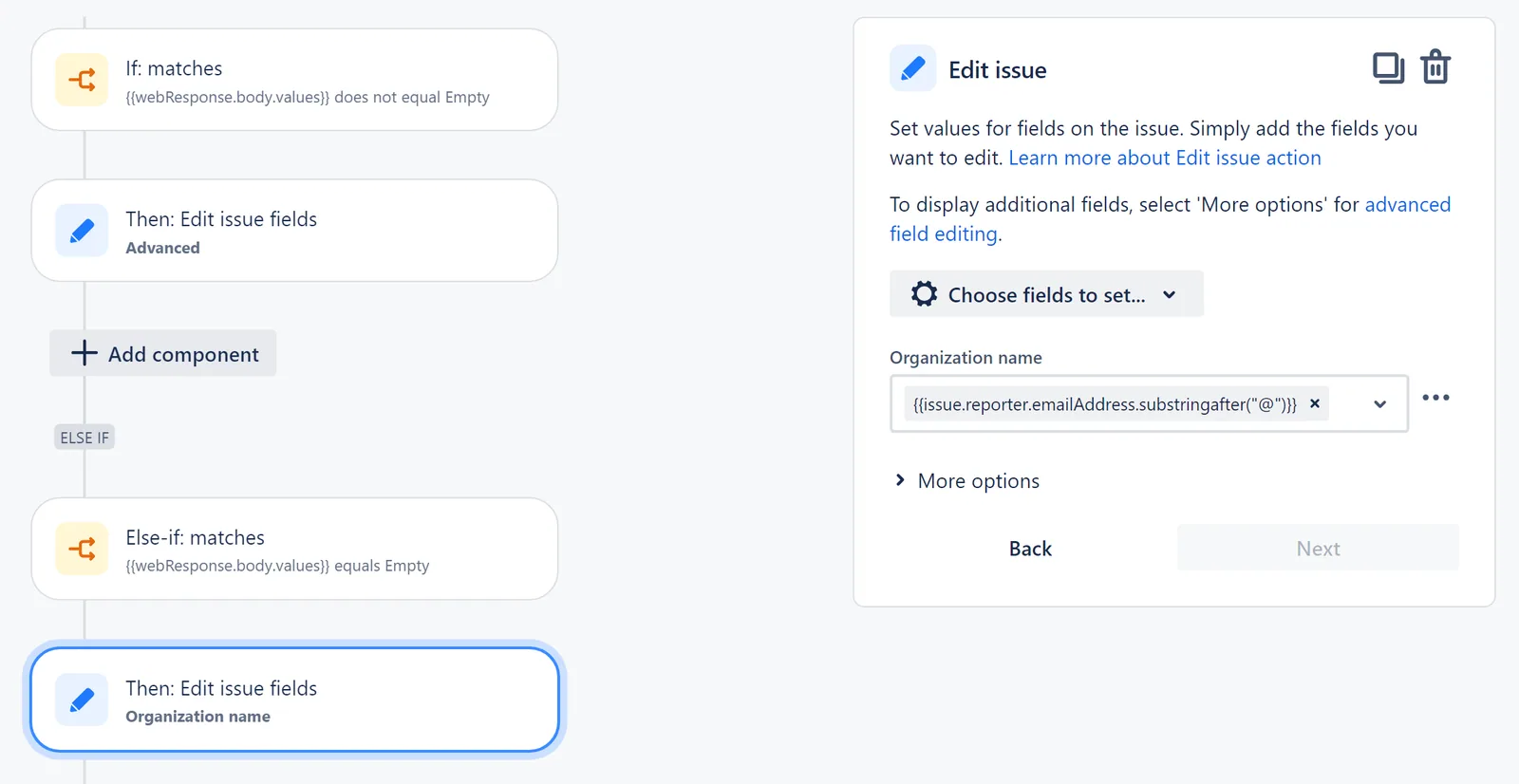
This automation rule will operate only if the customer has been added to an existing Organization in your Project Settings. The Organization name field for issues reported from new customers without any associated Organization in Jira will remain empty.
Automatic extraction of domains from customers’ emails is a solution that you can use for this scenario. Create a new name for the label by extracting the name from the customer’s domain, like this:
Step 3: Create Accurate Jira Reporting of Request Volumes per Organization
Let’s examine how organization-based reports, generated with the Performance Charts app for Jira, will look in three distinct scenarios:
Display by default Organizations field
In this report, we have chosen the default Jira field Organizations for Display by. You’ll notice there are 5 “Empty” issues. These represent customer requests with empty Organizations fields, making them unattributable to any existing Organizations in your project.
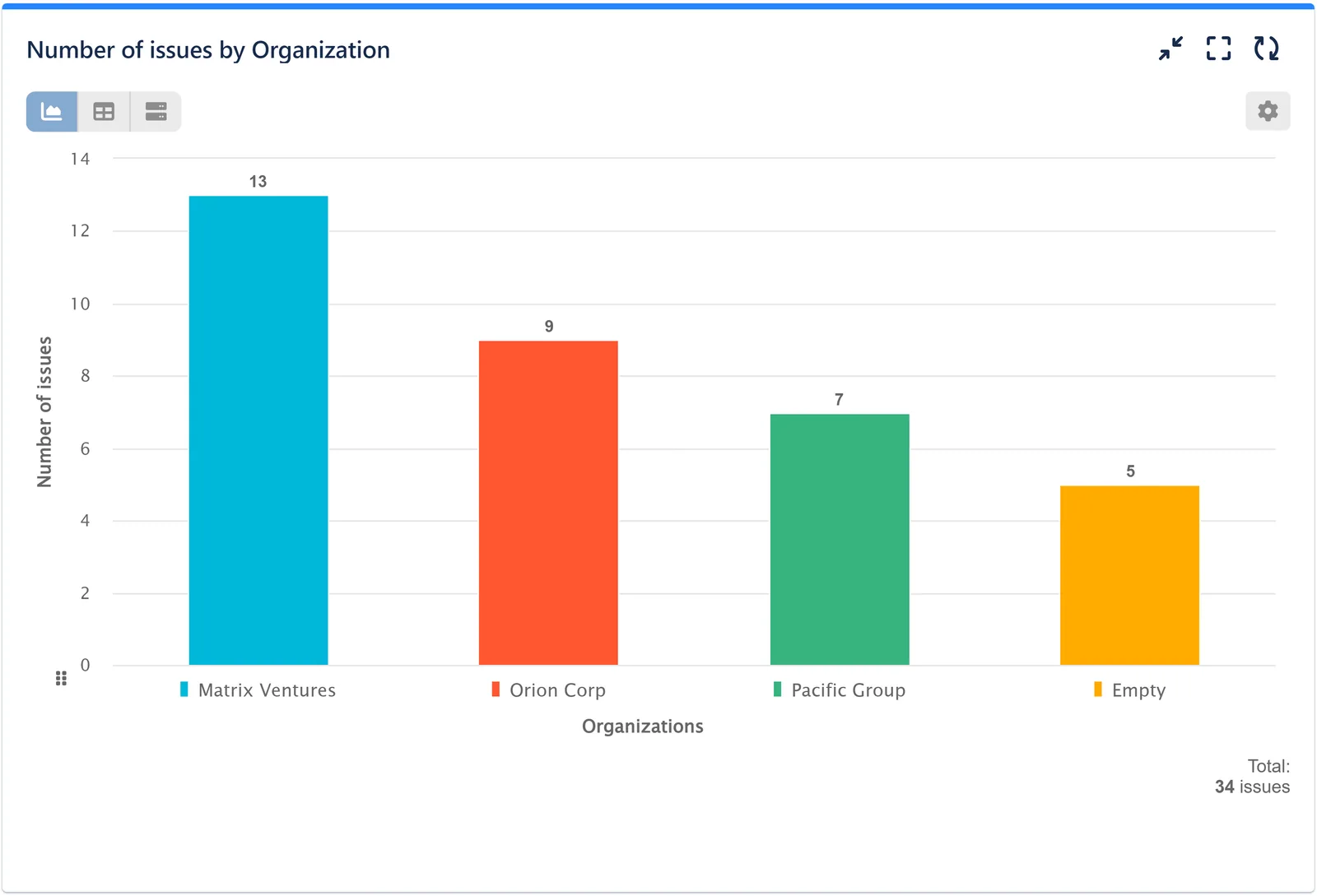
Display by custom _Organization name_ field
In this report, we’ve chosen the newly created custom field Organization name for Display by. It guarantees the inclusion of all already existing customer requests in the report, even if their default Organizations field is left empty due to various reasons. However, requests from new customers not added to any organization will still appear as “Empty” in the chart.
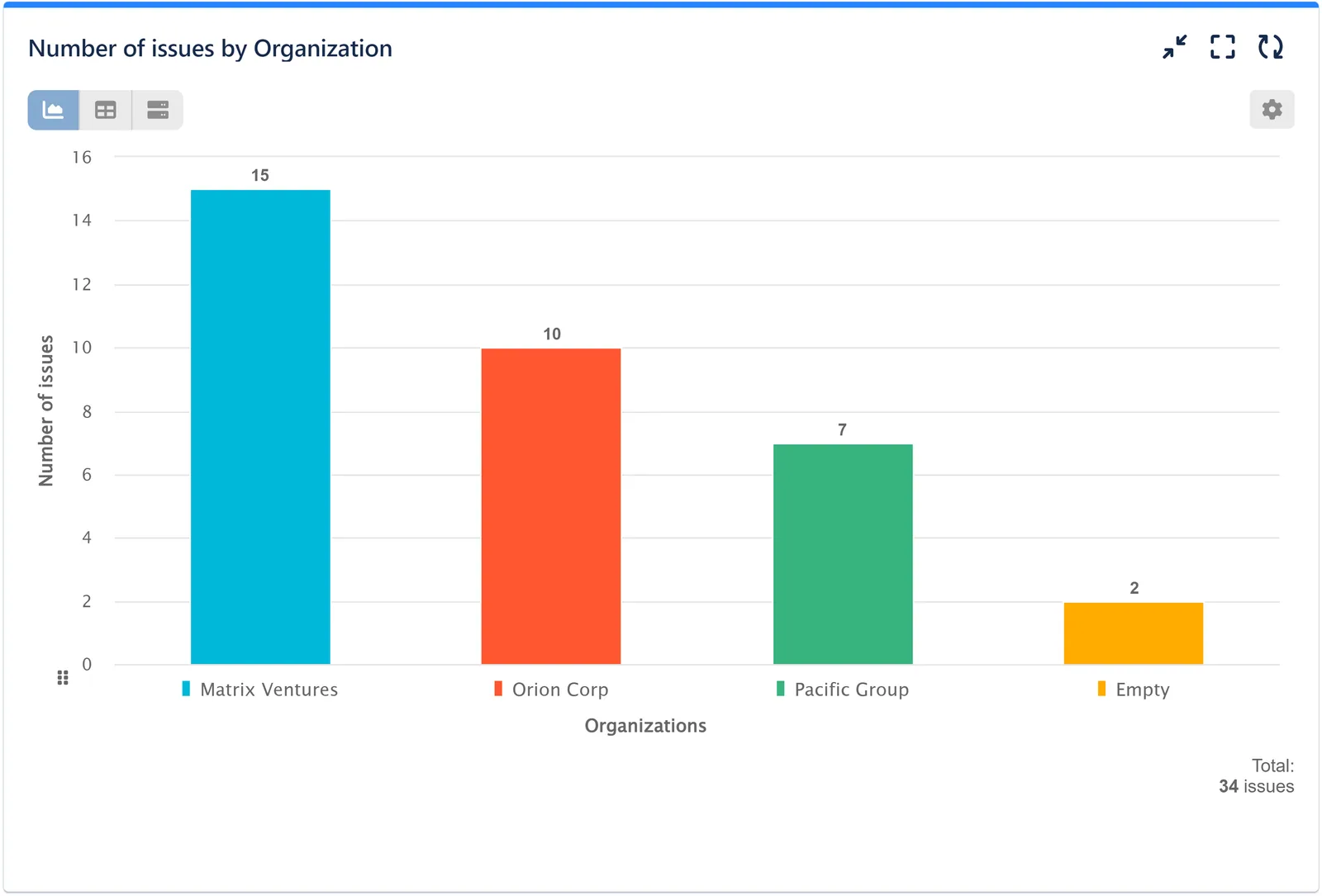
Display by custom field set up with automatic domain extraction
In this report, we’ve also opted for the custom field _Organization name _for Display by. However, we have automatically extracted the domains of new customers to derive insights from their data, rather than leaving them as “Empty” entries in the chart.
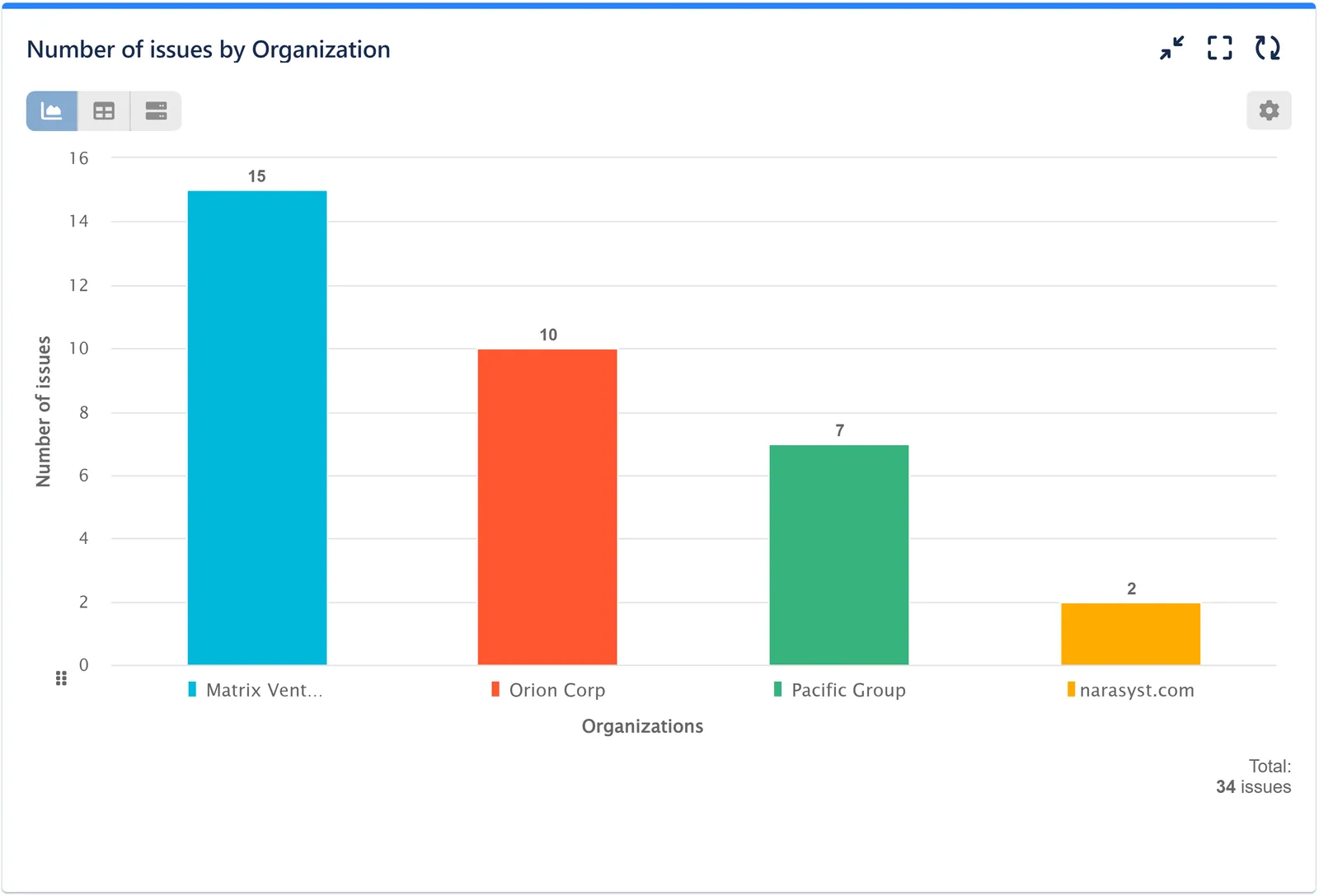
Conclusion
The implementation of Jira automation and custom field creation for gathering organization data significantly enhances the accuracy of insights derived from Jira reporting. By providing stakeholders with reliable data, this approach empowers informed decision-making. Furthermore, it effectively eliminates the need for agents to manually add organizations to the default field of requests, thereby preventing inadvertent sharing of sensitive information.
To delve into additional Jira reporting ideas or learn more about our app features, visit our User Guide.
- How to Track Open Issues Over Time in Jira (with Historical Trends)
 Beyond Basic Bug Tracking: 4+ Reports for Advanced Jira Defect Management
 Stop Exporting to Excel: Create Custom KPIs Directly in Your Jira Dashboard with Custom Formula
 Jira Service Management SLA Reporting: Understanding SLA Status and Breach Types
 Addressing the Watermelon Effect in Jira Service Management with Advanced Reporting
 XLA Reports for Jira Service Management
 From Custom Pie Chart to Sunburst: Configure Jira Charts with the Circular Gadget
 How to Report By Affected Services in Jira Service Management
Meaningful Reports for Jira, Made Easy
DevAcrobats develops reporting apps for Jira that extend its capabilities, enabling teams to streamline workflows and enhance performance.